SMS
This page helps you review sent and pending SMS messages, send manual messages, and check portal credit in Caramel.
Most SMS records are not created manually on this page. They are usually registered automatically by other modules through the SMS bridge. A common example is order confirmation in Drop or order ready notifications in Collector. This page is also useful for checking sending status, managing drafts, and monitoring SMS portal balances.
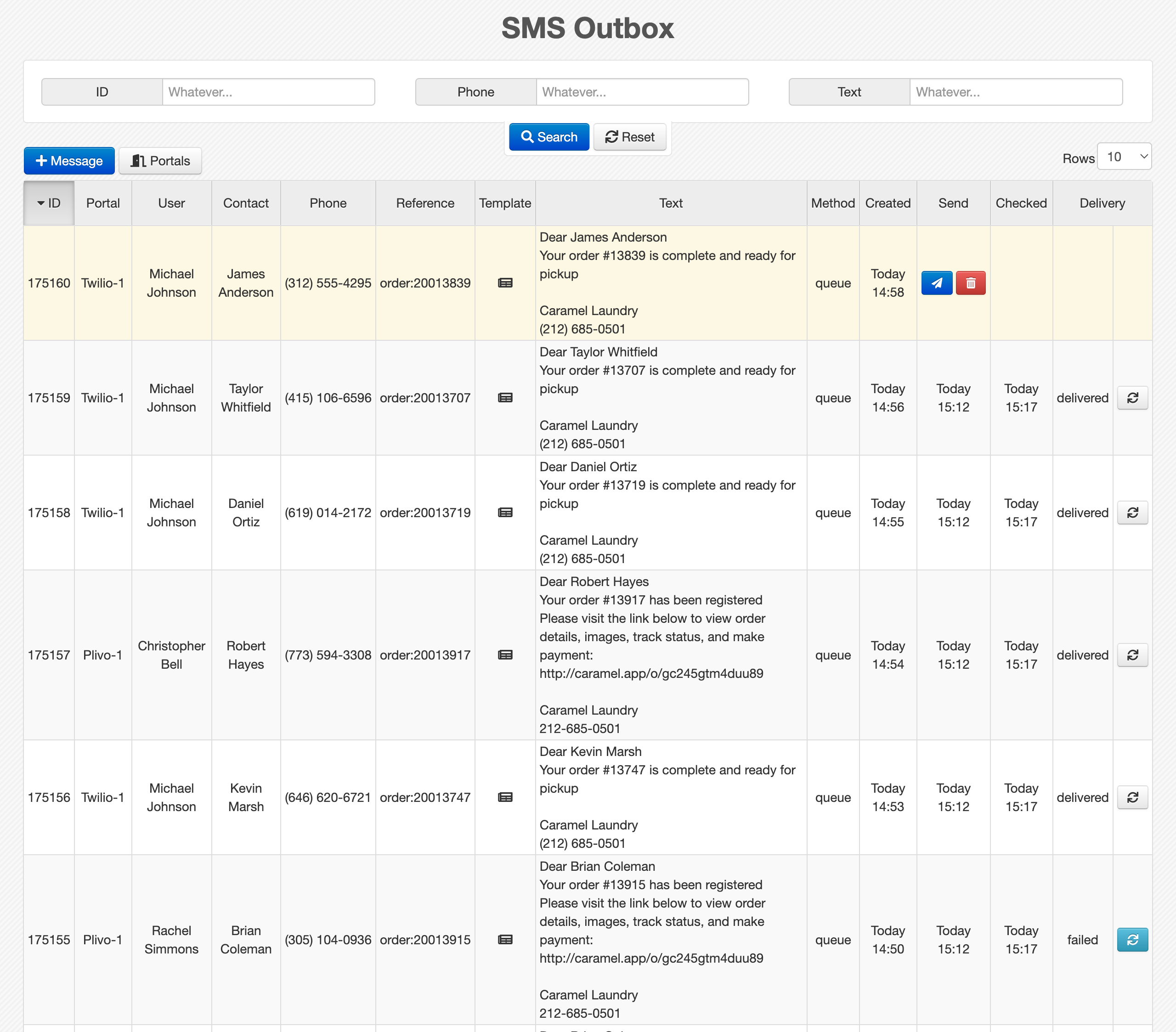
Page Layout
Like other report pages in Caramel, the SMS page is mainly divided into two sections:
- A filter box for searching messages
- A results table for reviewing and managing them
Filters
The filter section is simple and allows you to find specific SMS records using these filters:
- Id: Search by the system ID of the SMS record.
- Phone: Enter a full phone number or part of it.
- Text: Enter the full SMS text or part of the message content.
At the bottom of the filter box, these actions are available:
- Search applies the selected filters.
- Reset clears all current filters.
Results Table (SMS messages)
The SMS Messages table shows the search results.
Like other tables in Caramel, the table header contains the defined SMS fields. You can click each column header to sort the table based on that field. Clicking the same header again changes the sort order between ascending and descending.
Row actions
The available action buttons depend on the current status of each SMS.
Sent messages
If the SMS has already been sent, a small refresh button appears at the end of the row:
Use this action to update the delivery status from the SMS provider.
Draft messages
If the SMS has not been sent yet and is still in Draft status, these actions are available:
- Send the SMS
- Cancel the SMS
Once an SMS is sent and leaves draft status, it can no longer be canceled.
Sending methods
Caramel supports two sending methods for SMS:
Queue
With the queue method, messages stay in draft status for a period of time and are then sent together.
This method is useful when you may need to stop or edit a message before it is actually sent.
Benefits of queue sending:
- Messages can remain in draft for a short time
- Draft messages can be canceled before sending
- A corrected message can be sent again if needed
Instant
With the instant method, the SMS is sent immediately.
This method is faster, but the message cannot be changed or canceled after submission.
The queue sending interval is controlled by software configuration and can be adjusted by the support team.
Send a manual SMS
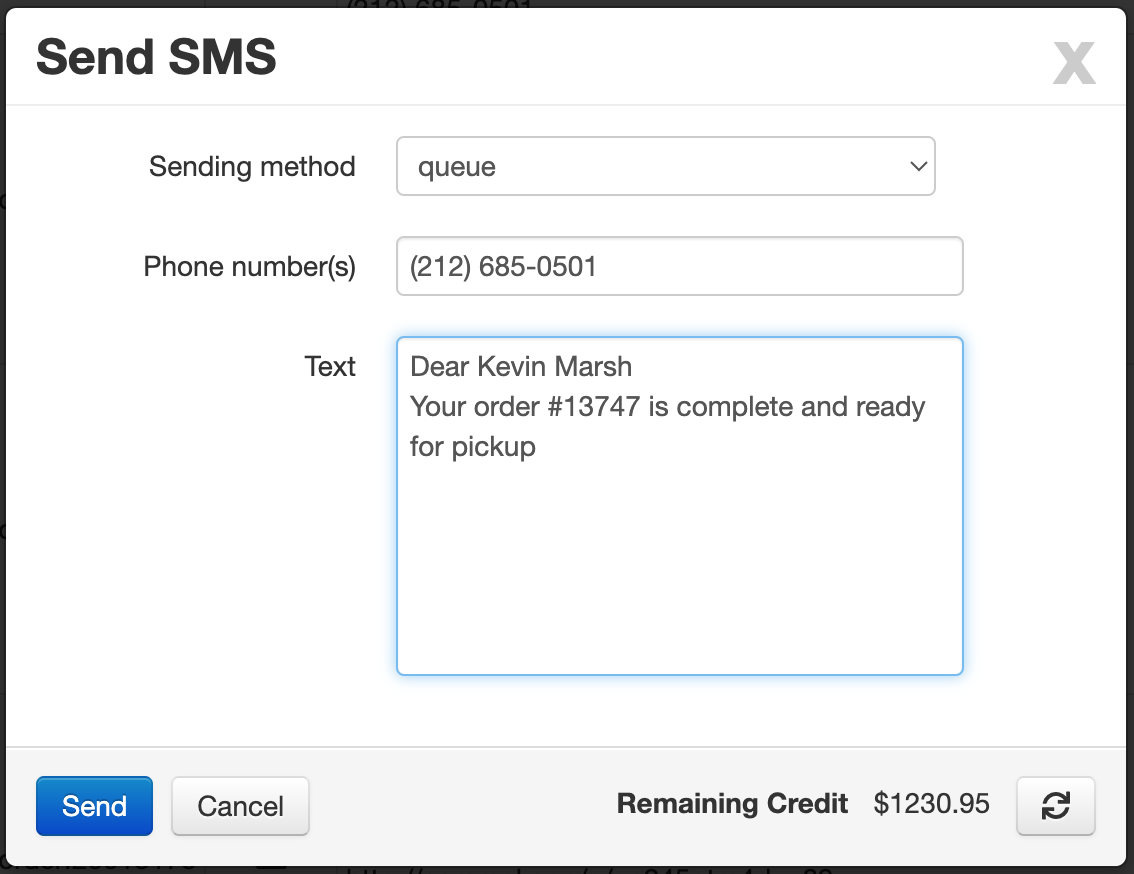
At the top of the results table, use the Message button to send a manual SMS.
The form includes these fields:
- Sending method: Choose between
queueandinstant. - Phone number(s): Enter one or more phone numbers. Separate each number with
; - Text: Enter the SMS message content.
At the bottom of this window, Caramel shows the Remaining Credit of the default SMS portal used for sending.
SMS portals
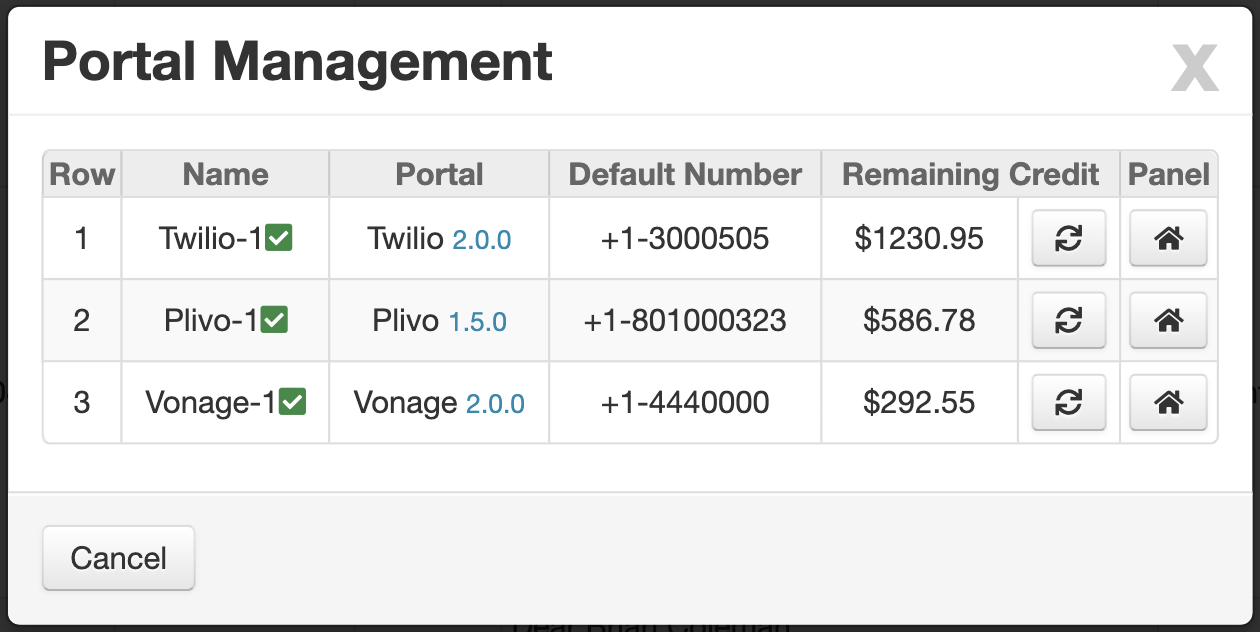
Next to the Message button, there is a Portals button.
This section shows the SMS service providers that are defined in the system configuration, along with their current status and remaining credit.
This helps you monitor available SMS balance and confirm which portals are active.
Multi-branch usage
If you have multiple branches, you can define a separate SMS portal for each branch. In this setup, SMS messages related to the Orders module can be sent through the portal assigned to that branch.
This can help you track and manage SMS costs more accurately for each branch.
Branch-based SMS portal setup requires configuration changes. Please contact the support team if you want this behavior to be enabled.