Containers
Containers are the storage locations where Items can be placed temporarily or permanently. This page is used to define containers, organize them into categories, and manage their settings for operational use across the system.
Because container settings can affect item flow and storage logic in other modules, especially in Orders, it is recommended that this page be configured by the support team or by users who fully understand the workflow.
In future workflows, these settings may be used in pages such as Collector or Process when assigning a storage location to an Item.
Page Layout
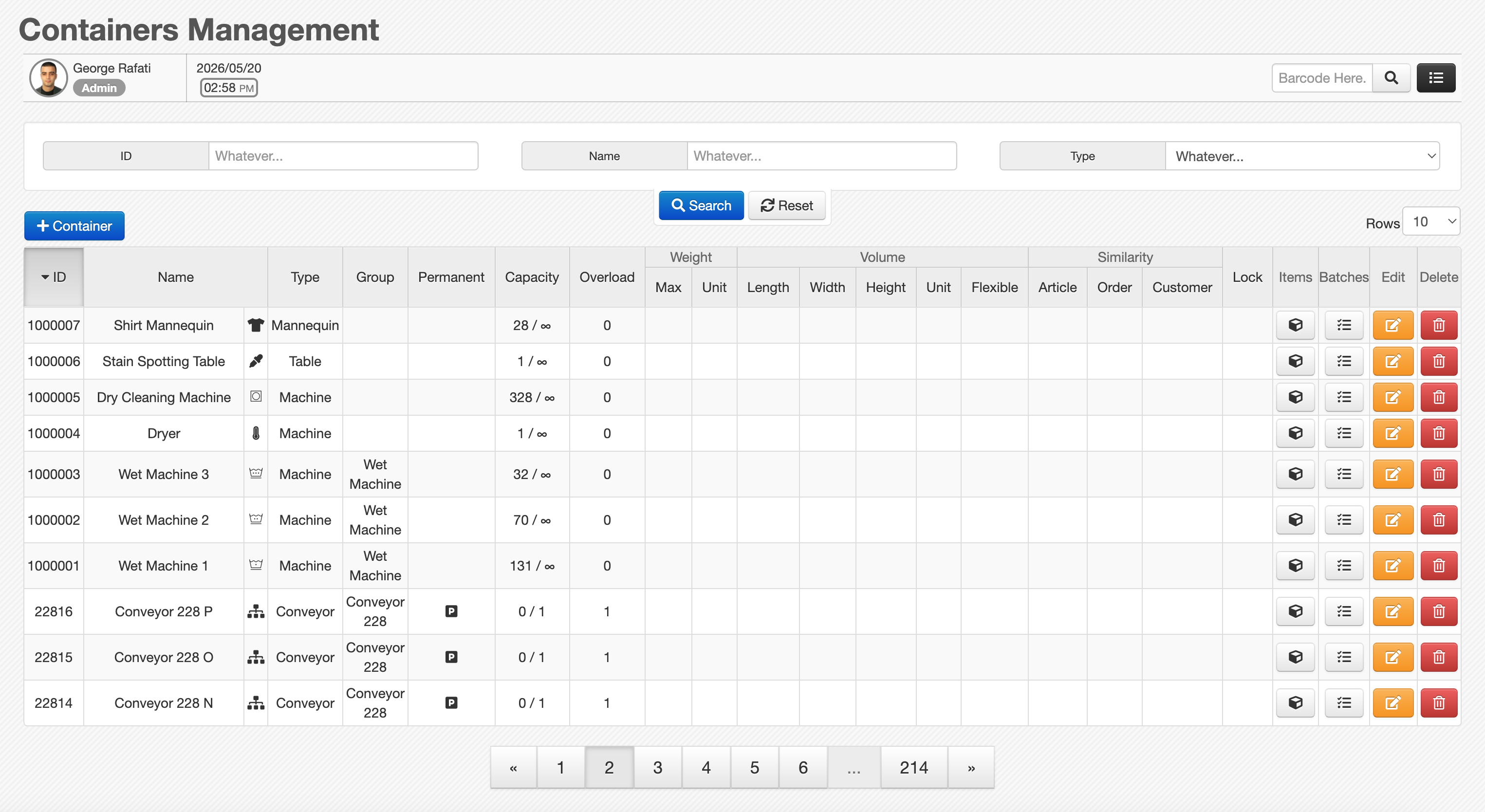
Like most management pages in Caramel, the Containers page includes two main sections:
- a filter box for searching existing records
- a results table for viewing and managing saved containers
filters
The filter section is simple and includes these fields:
- ID: Search by the container ID
- Name: Search by the container name
- Type: Search by the main container type
Use Reset to clear all applied filters and return to the default result list.
Results table
The Containers table displays the saved records and their main details.
Like other tables in Caramel, the table header supports sorting. Select any column header to sort the results based on that column. Selecting the same header again changes the sort direction between ascending and descending.
Each row also includes action buttons for quick management:
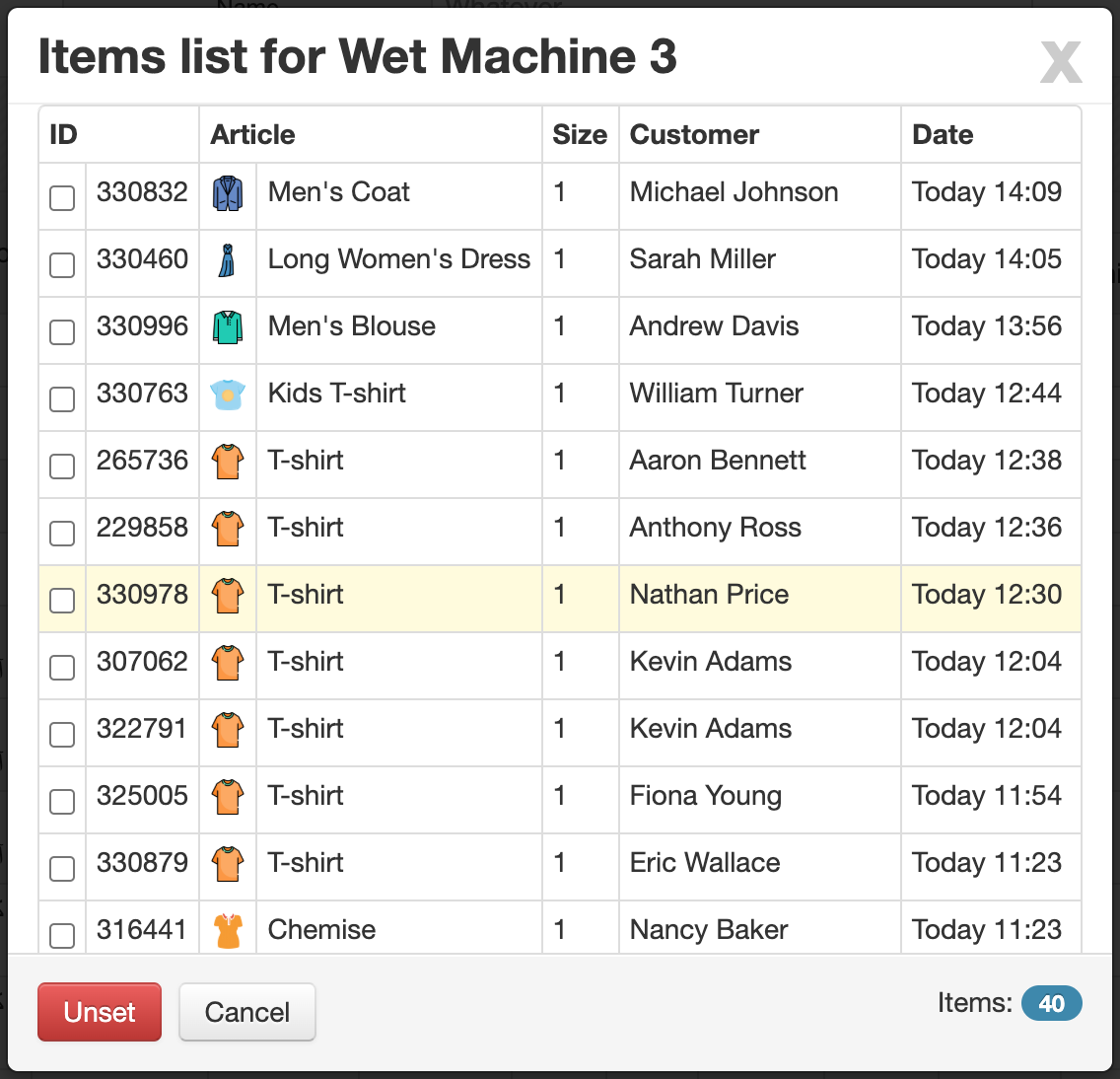
- Items: Shows the list of Items currently stored in that container
- Batches: Shows the batches that currently use this container as a storage location
- Edit: Opens the selected container for editing
- Delete: Removes the container record
Deleting or changing a container may affect operational assignments. Review related batches and stored Items before making changes.
Creating a new container
To add a new record, click Container
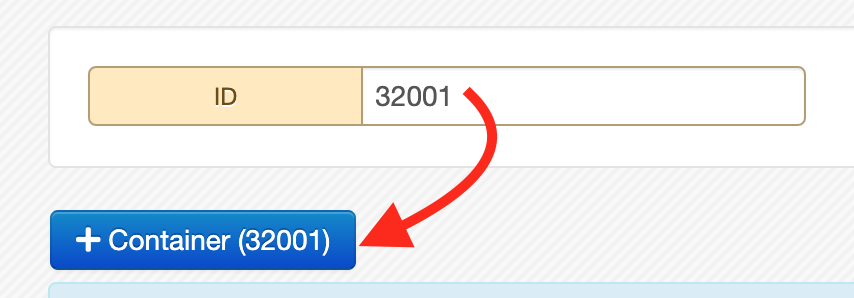
To set a container ID, first enter the ID in the search filters, then click: Container
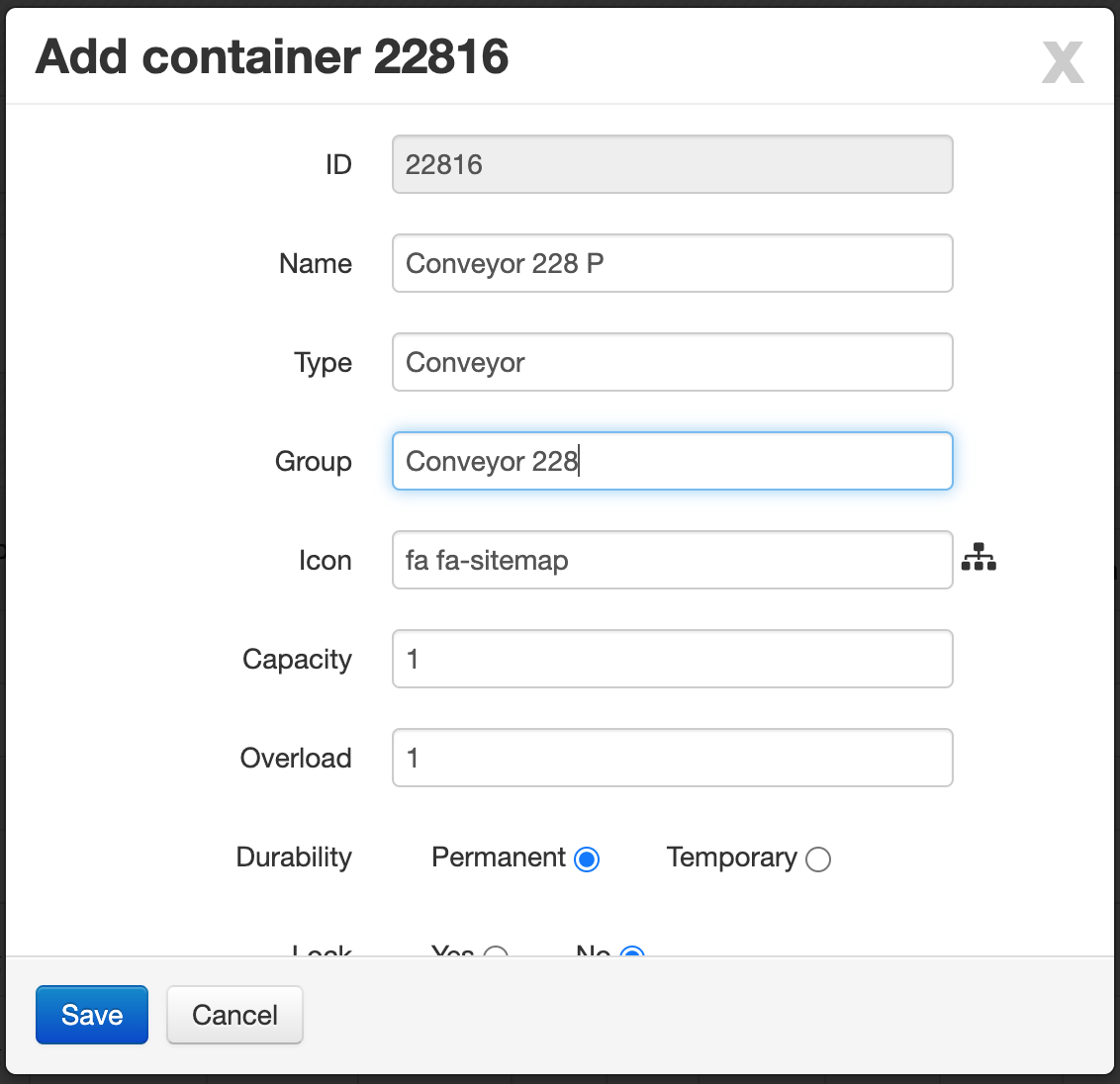
The form includes the following fields.
Main fields
- Name: The display name of the container.
- Type: The main category of the container. This value is entered as plain text. Containers with exactly the same type value are grouped together under the same category. Even a small spelling difference creates a new type.
- Group: A secondary grouping level under the selected type. This value is also entered as plain text. Containers with exactly the same group value are placed in the same subgroup. Any spelling difference creates a separate group.
- Icon: The icon class used for the group, based on Font Awesome. For example,
fa fa-shopping-bagdisplays a bag icon . You can browse available icons on FontAwesome. - Capacity: The maximum number of Items that can be stored in the container.
- Overload: The extra number of Items allowed beyond the normal capacity. This is a numeric field and the default value is
0. - Durability: Defines whether the container is Permanent or Temporarily. Some pages in the Orders module, such as Collector, only work with permanent storage locations, so temporary containers may not be shown there.
- Lock: Defines whether the container is locked. The default value is No. A locked container is usually used as a temporary restriction so Items cannot be moved into or out of it.
Weight settings
The first fieldset controls weight-related limits.
- Max Weight: The maximum allowed total weight for the container. The default value is
Unlimited. - Weight Class: The unit used for weight, based on the definitions in the Units module, such as Kilogram or Gram.
Volume settings
The second fieldset controls size and dimension settings.
- Length: The maximum allowed length. The default value is
Unlimited. - Width: The maximum allowed width. The default value is
Unlimited. - Height: The maximum allowed height. The default value is
Unlimited. - Length Class: The unit used for dimensions, based on the Units module, such as Centimeter or Meter.
- Flexible: Determines whether the remaining free space inside the container can be reused efficiently based on Item dimensions. The default value is No. When this option is enabled, empty spaces may still be used for other Items if their dimensions fit. When it is disabled, leftover space may remain unusable after Items are placed.
Similarity settings
The third fieldset controls whether mixed content is allowed inside the same container.
- Article: When enabled, the container can only store Items from one Article type.
- Order: When enabled, the container can only store Items from one Order.
- Customer: When enabled, the container can only store Items from one customer.
These options are useful when you want to keep stored Items separated for operational, quality, or tracking reasons.
Tips for using containers
To avoid creating duplicate categories, keep the text used for Type and Group consistent across all records.
Use Lock when a container should be temporarily unavailable without deleting it.
Before enabling similarity restrictions such as Order or Customer, make sure the operational team understands how this affects storage capacity and item movement.