Service Configuration
This page explains how to configure service pricing, service behavior, and related defaults for Articles in Caramel. Service Configuration is mainly used in the Orders workflow, where these settings control how operations behave for each Article. In many cases, the same values can also be adjusted as shortcuts while creating an order in Drop.
Overview
The Service Configuration page is designed for setting up:
- service prices
- default discounts
- estimated costs and durations
- tax behavior
- order-time edit permissions
- preselected services
- variable-price services
- the relationship between Articles and Operations
Configurations are displayed in a square-based matrix. Each square represents one configuration point between an Article row and an Operation column.
This page can become very large when you have many Articles and Operations. For performance reasons, the matrix stays hidden until filters are applied.
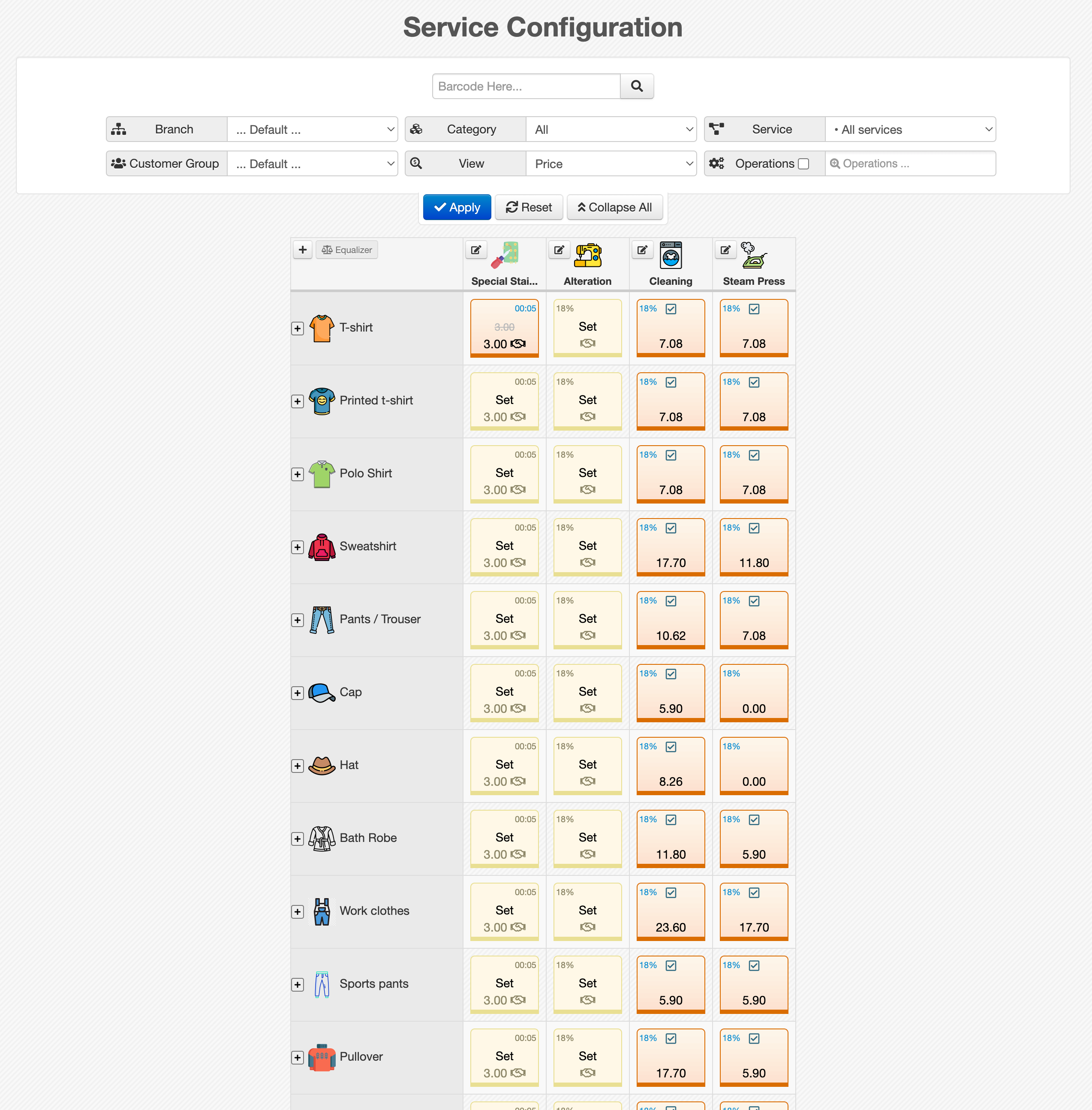
Page Layout
The page has two main parts:
- a filter section at the top
- a matrix table of configurations below it
The matrix is hidden at first. After you apply filters, the matching configuration grid is shown.
This behavior helps reduce browser load. In environments with many Articles and Operations, loading the full matrix at once may be too heavy.
If you only have a limited number of Operations, you can select All Services in the Service filter to display all related configurations at once.
How the Matrix Works
In the matrix:
- rows represent Articles
- columns represent Operations
- each intersection is a square configuration button
Selecting a square opens the configuration form for that specific Article and Operation.
Color Meaning
- Yellow squares use the default values from the Operation
- Red squares have their own configuration saved for that specific Article/Operation pair
After saving a custom configuration, the square changes from yellow to red.
Filters
Before the matrix is displayed, use the filters at the top of the page to limit the results.
- Branch: Select a branch when needed.
- Category: This is the Article Category filter.
- Service: This filter is used for selecting an Operation group. For example, all tailoring-related Operations.
- Customer Group: Use this filter to view or manage configurations for a specific customer group.
- View: Controls how values are shown inside the configuration squares. (Price or Cost)
- Operations: This is a multi-select list of individual Operations.
By default, only Operations whose View option is enabled in their settings are shown in this list. You can enable the checkbox next to the Operations filter to include all Operations, even those normally hidden from view selection.
When one or more Operations are selected here, the Service filter is skipped.
Branch and Customer Group do more than just reduce the visible list.
These two filters create separate configuration contexts. In practice, this means you can keep different prices and defaults for different branches, different customer groups, or a combination of both.
The other filters mainly help reduce the visible matrix size.
Filter Actions
Apply Applies the selected filters and loads the matrix.
Reset Clears all selected filters.
Collapse All Closes all expanded Article option rows at once.
Collapse All is useful when several Article rows have been expanded to show related option groups and options.
Opening a Configuration
Click any square in the matrix to open its configuration form.
The form is used to define custom values for that Article and Operation combination.
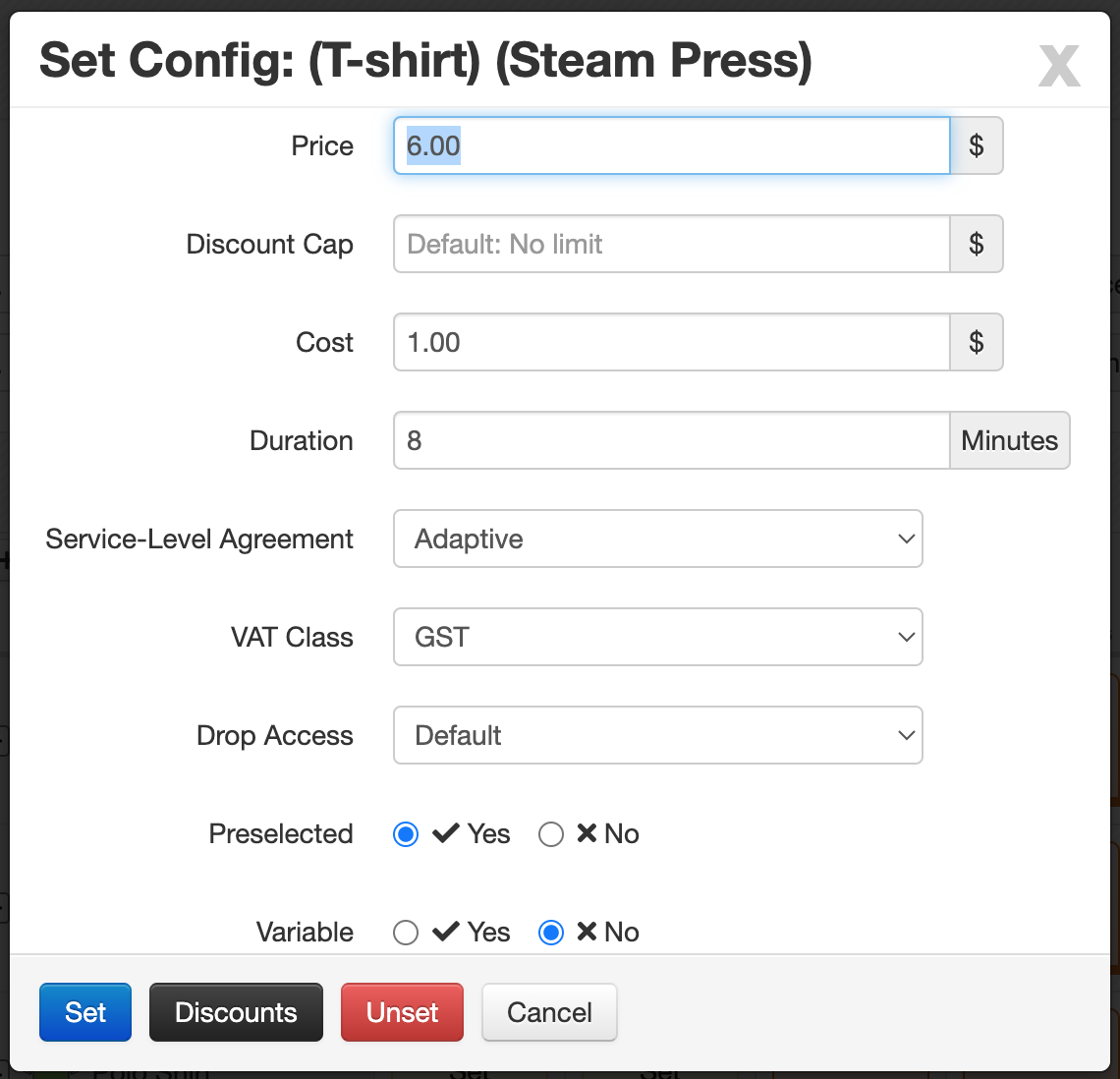
Configuration Form
- Price: A numeric price amount.
- Discount Cap: The maximum amount that can be discounted.
- Cost: An estimated internal cost.
- Duration: The estimated time required for the Operation, in minutes.
- Service-Level Agreement: A free-text description for service notes or limitations during. It's useful during item creation in Orders > Drop. Examples:
risk accepted by customerspecial handling conditions - VAT Class: The tax class previously defined in Accounting.
- Drop Access: Controls whether this value can be changed manually during order registration in Drop.
- Preselected: Controls whether this Operation is selected automatically for the Article during order creation in Drop.
- Variable: Controls whether the price should be requested each time during item creation in Drop. When enabled, the service price is treated as highly variable. This helps speed up order entry, because the operator can enter the price directly when needed instead of manually editing a fixed value every time.
To save the form, click Set in the form footer.
After saving:
- the square becomes red
- the final price is shown at the bottom of the square
If the default price has been overridden in any way, the original default price is shown in the middle of the square as a red line-through value.
Icons and Indicators Inside the Square
Depending on the saved settings, extra indicators may appear inside the square:
- VAT assigned: VAT percentage appears in the top-left corner
- Preselected enabled: appears near the top-center
- Duration set: shown in the top-right area as minutes or hours/minutes
- Variable enabled:
Editing an Existing Configuration
Click a red square to edit an existing configuration.
The same configuration form opens again, but with additional actions:
- Discounts
- Unset
Discounts
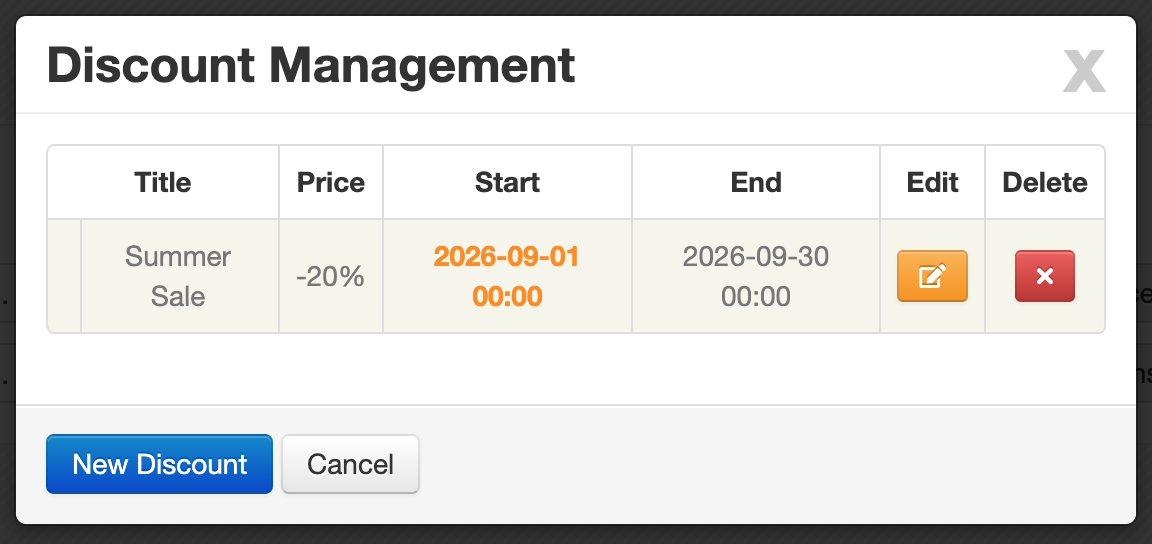
The Discounts page shows discounts already defined for the selected configuration.
If multiple discounts exist, the one currently taking priority is marked with ✅.
To add a new discount, click New Discount
Discounts are only available for configurations that have already been set (red squares).
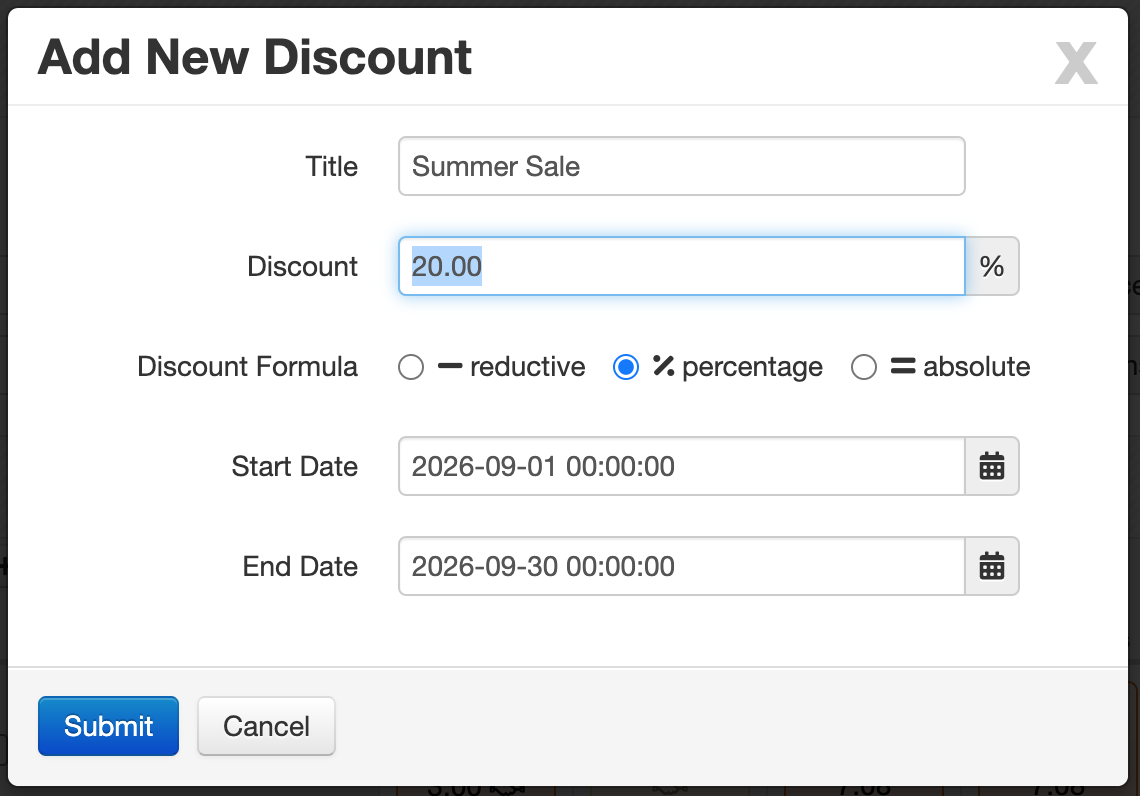
Discount Form Fields
- Title: A custom name for the discount (optional).
- Discount Formula: Choose one of these radio options:
- Reductive: Fixed reduction amount
- Percentage: Percentage-based discount
- Absolute: Fixed final numeric value
- Discount: The discount value itself. This field is interpreted based on the selected Discount Formula.
- Start Date: Optional start date for the discount.
- End Date: Optional end date for the discount.
If no date range is defined, the discount is treated as always available.
Discount Priority
If multiple discounts are valid on the same date, the newer one takes priority.
In other words, when overlapping discounts exist, the discount with the more recent creation date is used first.
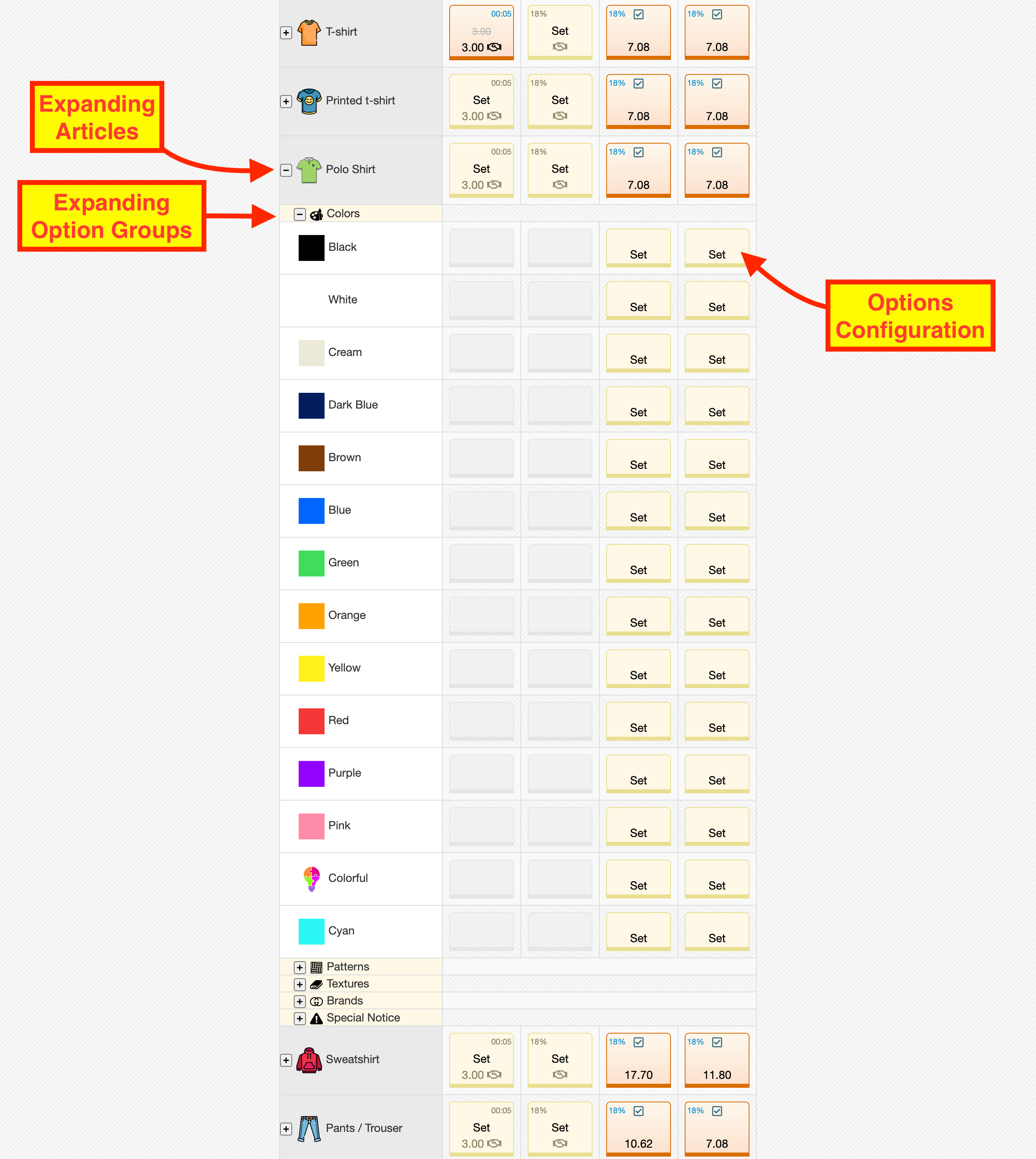
Expanding Article Options
Click an Article name in the row header to expand its related option groups and options in a tree-style structure below it.
This makes it possible to configure child options under the main Article.
If the main Article configuration is still using the default state (yellow), its child Options cannot be configured yet.
You must first set the main Article configuration before the Option squares become clickable.
Operation Column Shortcuts
At the top of each column, the Operation name and icon are displayed.
You can also use the shortcut buttons in the column header:
- opens the edit form for that Operation in Operations
- creates a new Operation as a shortcut to Operations
Recommended Workflow
For easier setup, this order usually works best:
- select the correct Branch and Customer Group context if needed
- filter by Category, Service, or specific Operations
- click Apply
- configure the main Article square first
- expand the Article row if option-level configuration is needed
- save discounts only after the base configuration is set
Related Pages
Use narrower filters whenever possible. A smaller matrix is faster to load, easier to review, and less error-prone when updating many service rules.