Payment Inquiries
This page helps you review payment requests that were created automatically by the system.
It includes records related to payment flows such as POS payments and online payment requests. A record may exist whether the payment is completed successfully or not. In practice, whenever a payment request is created, Caramel adds a row to this table and later updates its result by changing the request status.
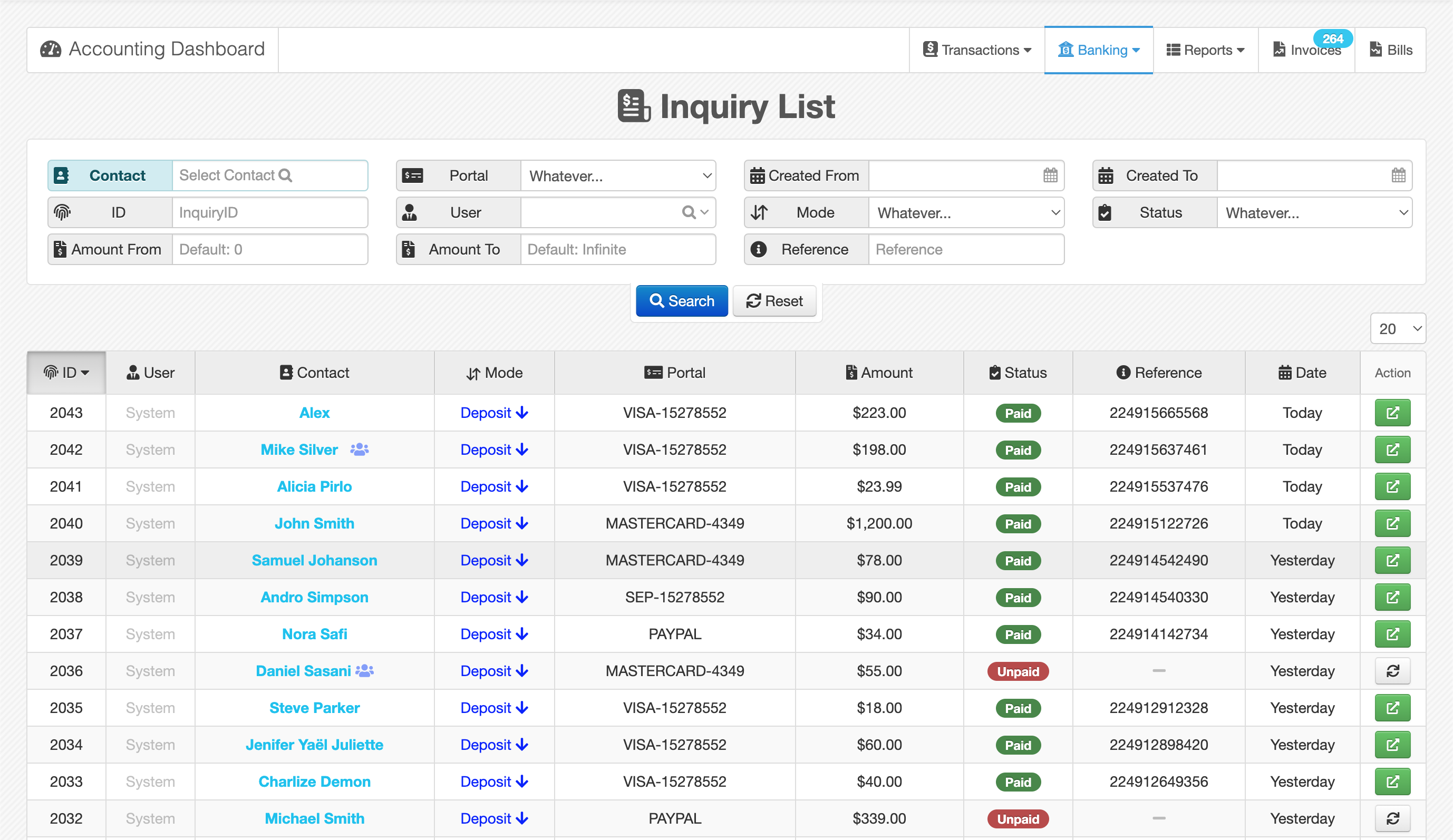
Page Layout
Like other report pages in Caramel, this page includes two main sections:
- a filter box for narrowing down results
- a results table for viewing matching transfers
Each filter includes its own label, so you can apply the criteria you need and reach the intended report more quickly.
The Reset button clears all applied filters and returns the page to its default search state.
Results Table
The results table works like other tables in Caramel and includes a table header with sortable columns.
You can click each column header to sort the table based on that column. Clicking again changes the sort direction between ascending and descending.
Understand the Status Column
The most important column in this page is Status, which shows the latest state of each payment request.
Common statuses include: Pending In Process Unpaid Paid Incomplete
The Paid status means the payment has been finalized successfully and confirmed by the bank or payment provider.
The Unpaid status means the payment was not finalized or was not confirmed by the bank or payment provider.
View Bank or Provider Messages
By hovering over the Status column, additional details may be shown if available.
These details can include:
- error messages returned by the bank or payment provider
- success messages
- transaction reference numbers
- card or payment-related information
Hovering the status is useful for troubleshooting failed payments or verifying successful ones without opening the full transaction.
Open or Retry a Request
At the end of each row, one of these action buttons may be available depending on the request result:
-
View
If the request is successful, this button opens the related transaction. -
Retry
For rows that are not yet finalized as Paid, this button may be available to resend the request when retry is possible.
When to Use This Page
You can use this page to:
- review automatically created payment requests
- check whether a request was completed or failed
- follow status changes for POS or online payments
- open successful transactions
- retry requests that are still unresolved when allowed