Reports
This section provides access to contact-related financial reports in Caramel.
It includes both Customers Report and Vendors Report. Since both pages share the same structure and logic, this guide focuses on the Customers Report. The Vendors Report works in the same way.
Using these reports, you can analyze contact behavior such as identifying reliable or risky customers, loyal or inactive ones, and reviewing top debtors or creditors — all based on flexible filters and custom time ranges.
Page Structure
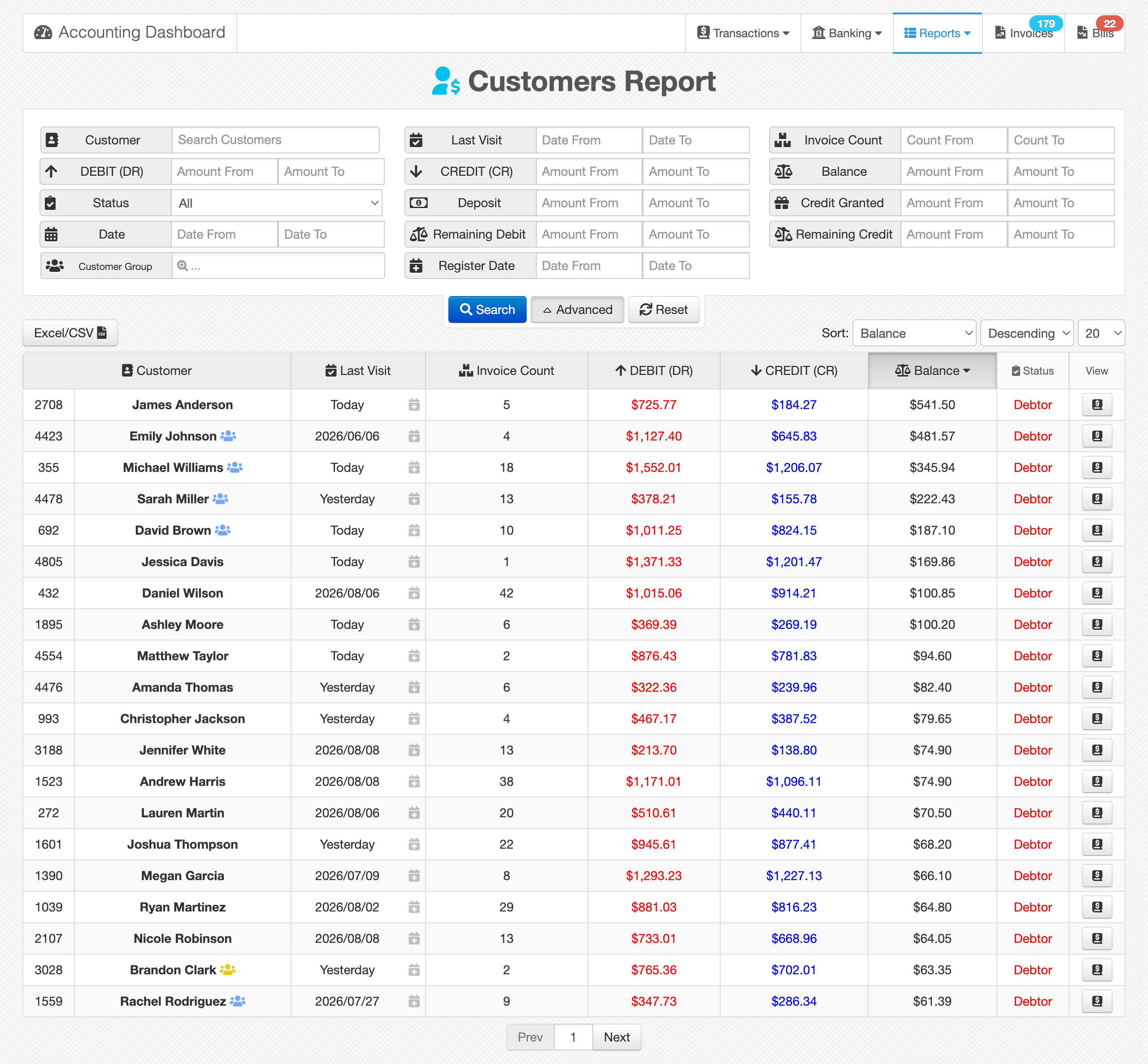
Like other report pages, this page is divided into two main sections:
- Filter Panel → used to define search conditions
- Results Table → displays the filtered data
The filter panel contains multiple fields, each labeled clearly. You can combine filters to narrow down your report.
The first three rows include commonly used filters and are always visible.
Click the Advanced button to access additional filters for more precise queries.
To clear all filters, use: Reset
Different users may define reports differently. Use combinations of filters to get the exact result you need.
Filters
Most filters (except a few) use a From / To range structure.
Below is an overview of available filters:
- Customer: Select a specific customer
- Last Visit: Customer's last activity (invoice or payment)
- Invoice Count: Total number of invoices
- DEBIT (DR): Total invoiced amount plus statement entries
- CREDIT (CR): Total deposits plus given credits
- Balance: Difference between DEBIT and CREDIT
- Status: Financial status: Debtor, Creditor, or Settled
- Deposit: Total amount of customer payments
- Given Credit: Credits granted via separate transactions
- Date: Transaction date range
- Remaining Debit: Outstanding payable amount
- Remaining Credit: Remaining credit (including overpayments)
- Customer Group: Group classification
- Register Date: Customer registration date
Some filters may overlap or affect each other. Make sure to understand how each one works to avoid incorrect results.
Results Table
The results table displays filtered data with the following columns:
- ID
- Customer
- Last Visit
- Invoice Count
- DEBIT (DR)
- CREDIT (CR)
- Balance
- Status
You can sort the table by clicking on any column header. Clicking again toggles between ascending and descending order.
By default, the table is sorted by Balance (descending), showing the highest debtors at the top.
Row Actions
Each row includes quick access options:
-
ID
Clicking opens the contact profile in the Contacts module for full details and editing -
View Button
Navigates to the transaction list page filtered for the selected customer
(transactions/management-list)
Exporting Data
Use the export button at the top of the table:
Excel / CSVThis allows you to download the current report results as an Excel or CSV file.