Process (Workflow)
The Process page is the operational workspace in Caramel — the screen most frequently used by front-line staff to perform item operations quickly and consistently.
This page is designed to be scanner-first (barcode or RFID). In most setups, operators can complete the full workflow with minimal mouse/touch usage. That’s intentional:
- Faster execution (no switching between mouse, keyboard, and scanner)
- Lower training overhead for non-technical staff
- Better usability in environments where gloves are used or touch is inconvenient
- Reduced mistakes through large controls, high-contrast UI, and clear visual/audio feedback
When this guide says “click”, assume there is usually an equivalent barcode command that performs the same action faster. Those barcode commands are configured for your business during setup.
What you see in the top menu
The Process top menu includes operational shortcuts. The exact options can vary by business configuration.
- Batch Process: Launches batch actions (processing multiple items together), usually configured by the support team.
- Settings: Business-specific settings, usually configured by the support team.
- Edit: Reveals additional controls (depending on permissions and setup).
Manually setting a container (storage location)
A practical option you may use is:
- Container: Assign a storage location to the selected item (basket, shelf, table, conveyor, etc.).
You can do this manually, but in most workflows it’s faster to:
- scan a container barcode, or
- rely on sensor-driven / automatic container detection (if available in your setup).
- Assigning containers manually: Top menu > > Container
Operational modes, barcode commands, smart container behaviors, and related rules are typically configured during onboarding by the support team and/or in Management > Operations.
Daily operator statistics (left panel)
The Statistics box () is pinned on the left side of the table and summarizes the daily performance of the currently logged-in operator on the Process page.
It may be hidden in some deployments (configurable during setup).
Typical metrics include:
- Total items: number of distinct items you worked on today
- Requested items: items returned or marked as requested (depending on your business flow)
- Operations breakdown: operations performed, grouped by operation type
(one item can have multiple operations) - Total operations: the total count of operations performed
- Total time: productive time calculated intelligently based on operation patterns
Caramel calculates “useful time” based on what you actually do (operation signals), not just how long the page stayed open.
Items table (right side)
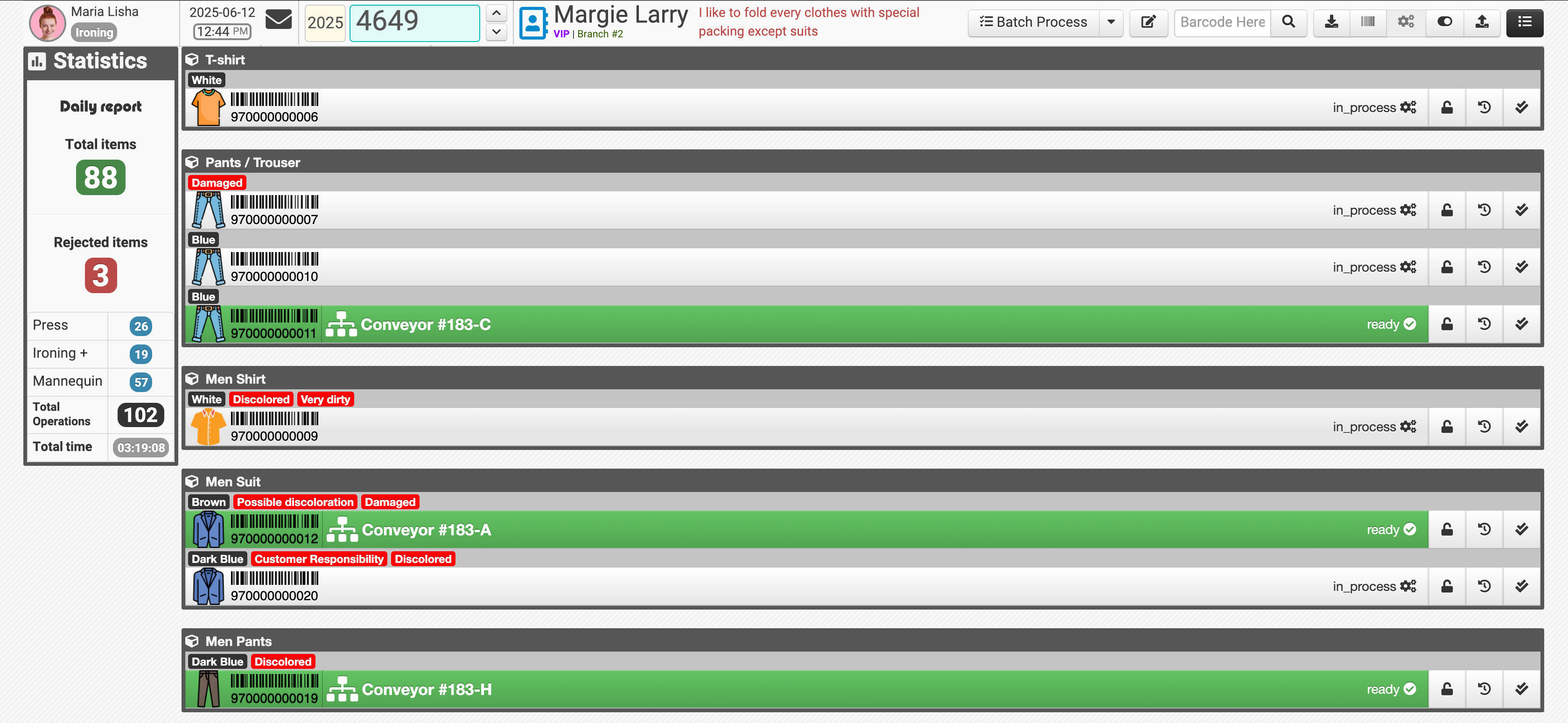
On the right, you’ll see the items list.
- If no item is selected, the list stays in a minimal/collapsed state:
- rows may be compact
- you primarily see the table header and basic item rows
Opening an item
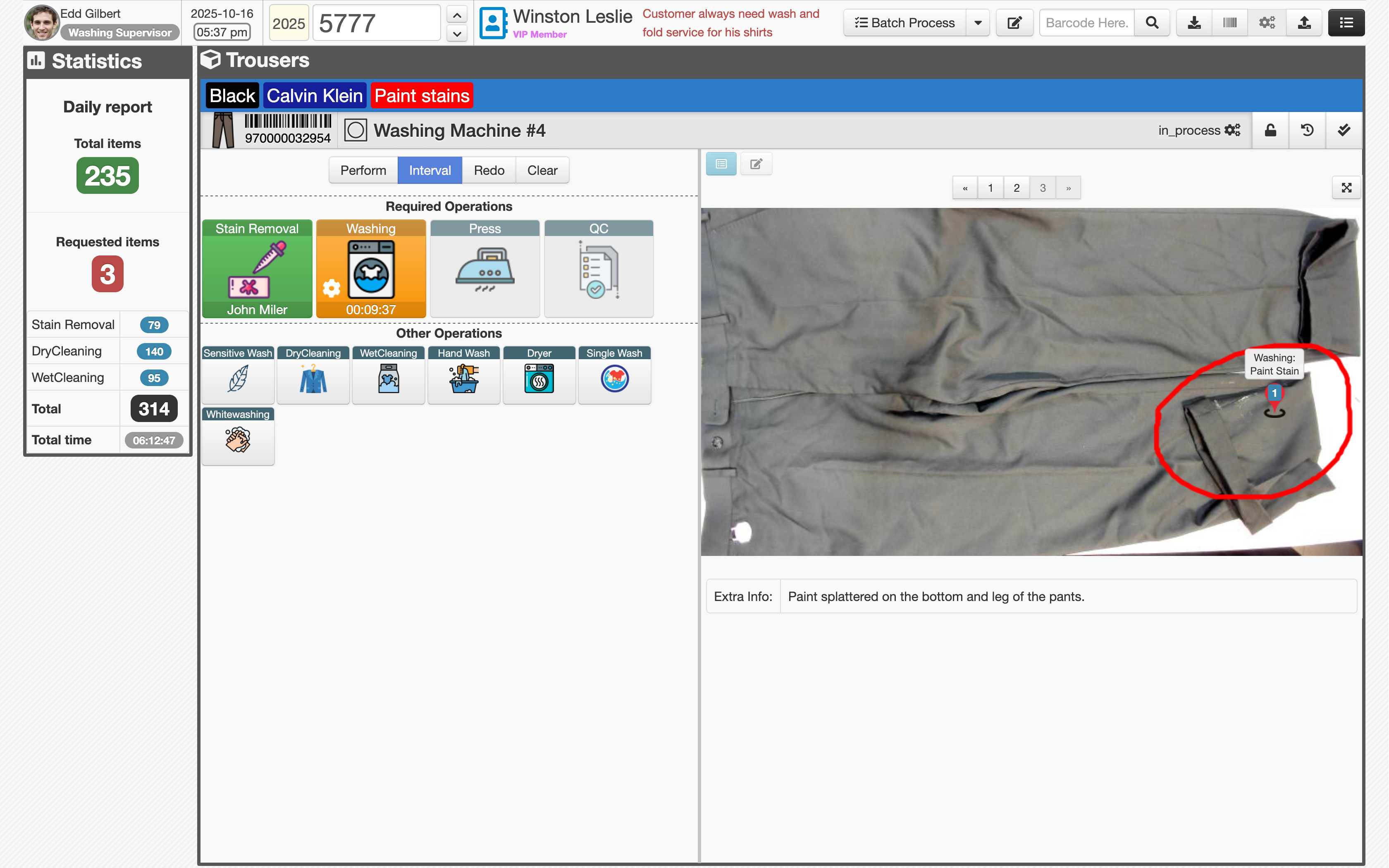
When you select an item (by scanning its barcode/RFID or clicking its row), the page expands into a full operational view for that item:
- large item photo(s)
- drop/reception notes and markings
- operation buttons (required and optional)
- current status and location
- item history and special actions
Expanded item view
When an item is open, the screen is effectively split into two areas:
- a header bar (item identity + status actions)
- a large content area (photos/notes + operation controls)
Item header bar (top row)
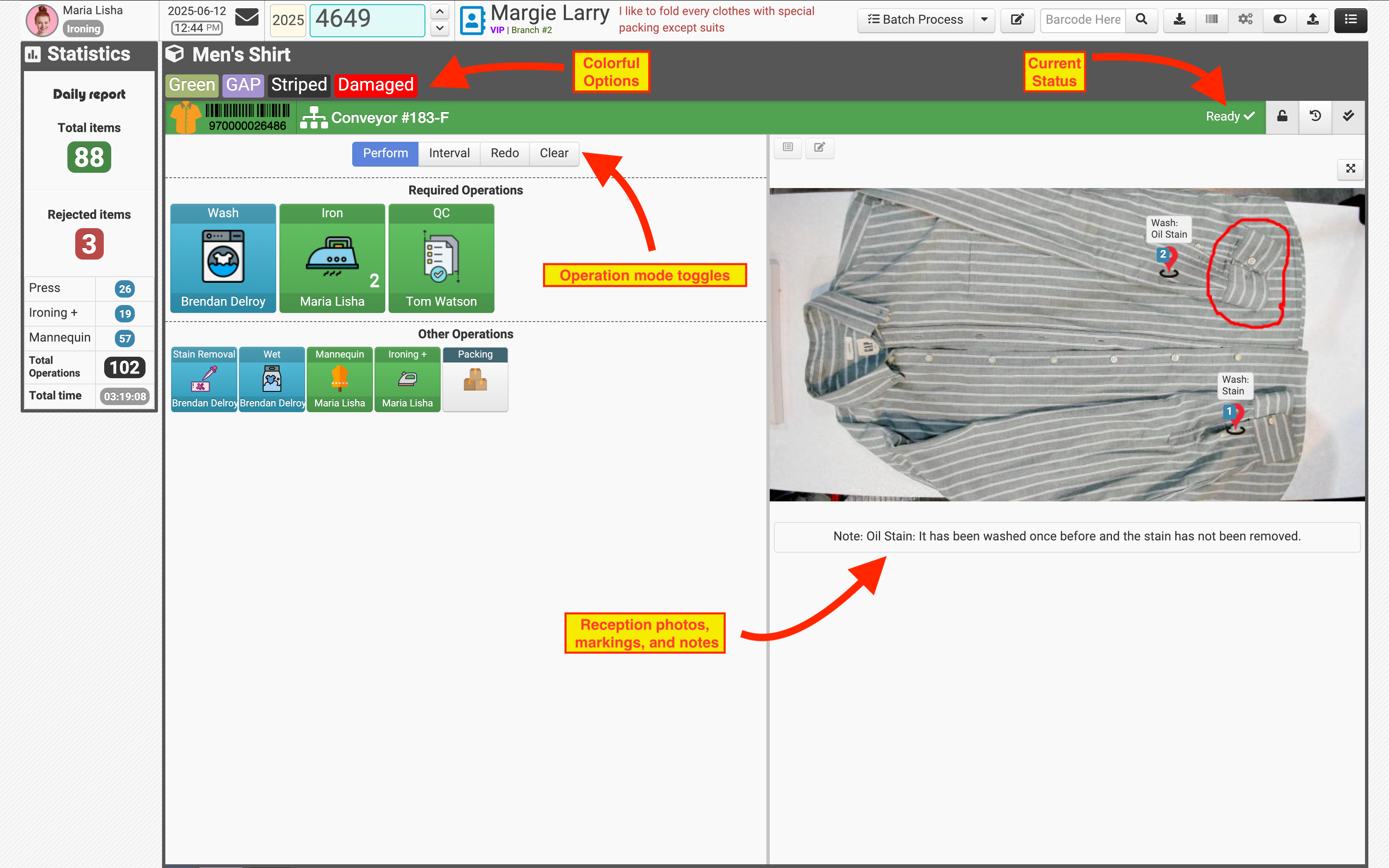
The header bar is always visible (even in collapsed layouts). It contains:
- item icon + item options (color, pattern, material, etc.)
- the item barcode
- the current container/location (basket / shelf / table / conveyor / …)
- the current item status:
untrackablein_processsuspendedreadypicked_up
It also includes three important action buttons:
/ Suspend / Unsuspend
Suspending an item locks it from further processing until it’s released.
- Click the lock button (if you have permission).
- A modal asks for a reason/request text.
- To release the item, click again and provide the resolution/response text.
In many businesses, suspend/unsuspend steps and even the text can be automated via barcode commands (e.g., scan a “Suspend” command barcode to apply a predefined reason).
Item activity history
Shows the full timeline of what happened to the item:
- actions performed
- timestamps
- who performed the action
- in some setups, who requested it
Force-complete all remaining operations
Marks all unfinished operations as completed under the current operator and sets the item to ready.
This bypasses normal workflow rules and can cause quality or audit issues. Use only if your business policy explicitly allows it.
Header colors (status awareness)
The item header changes color based on the current status to help operators identify issues instantly:
- Red:
suspended - Dark gray:
untrackable - Light gray:
in_process - Green:
ready - Orange:
picked_up
Main content area (full screen row)
The main section is split into two primary columns:
Right column: photos, markings, and notes
This area is fed by reception/drop inputs:
- item images / slides
- markings or tagged guidance added during reception
- additional notes for the operator (shown below the slider)
Left column: operations (big action buttons)
Operations are designed for speed:
- large buttons
- readable labels
- strong visual state (colors, counters, and names)
- compatible with scanner-driven workflows
The operations column usually has three rows:
Operation mode toggles
At the top you’ll see four toggle modes:
- Perform: mark an operation as done immediately
- Interval: click once to start, click again to end (duration is recorded)
- Redo: request a previously completed operation to be done again
- Clear: revoke/cancel a completed operation (based on permissions)
These toggles change what happens when you press an operation button.
You first choose the action type (Perform / Interval / Redo / Clear), then select the operation.
Required Operations (main operations)
These are the primary operations that must be performed for the item.
- displayed as large square buttons
- each button includes:
- a header (operation name)
- a footer (operator name or time counter)
- a large icon in the center for quick recognition
Status colors and visual rules
Operation buttons can change color depending on how they were completed:
- Green: completion confirmed explicitly by the operator (manual completion)
- Blue: completion timestamp filled automatically by Caramel (smart completion)
- Red: marked for rework via Redo
- Cleared operations: the performer’s name may appear struck through (depends on setup)
If an operation was performed multiple times, a counter badge appears on the button.
Tip Some businesses use Interval mode for steps like drying time, inspection time, or machine cycles.
Other Operations (optional operations)
Other Operations are optional or situational steps.
- shown as smaller squares (roughly ~¼ of the size)
- same structure as Required Operations (header/footer/icon/colors)
Some “Other” operations can be configured to also trigger or affect required operations automatically.
Operation trees, prerequisites, warnings, and smart rules (e.g., “Ironing must be after Dry Cleaning”) are configured in: Management > Operations Usually with support team guidance during onboarding.
Manual vs scanner-driven execution
Everything explained above works in manual mode (click-based), but operational performance is best when the workflow is executed via scanner commands.
- faster completion
- fewer mistakes
- minimal touch requirements
- predictable behavior for staff
Ask your support team to configure the barcode commands you need for:
- selecting items
- completing operations
- interval start/end
- redo/clear
- container assignment
- suspend/unsuspend with predefined reasons
Related pages
- Operations setup & prerequisites: Management > Operations