Management (List & Search)
Transactions are the core logic and the central data layer of the Accounting module in Caramel.
Almost all financial activities—such as Invoices, Bills, Deposits, Withdraws, Credits, and Transfers—are stored as transactions. Other pages mainly collect additional details, but the actual financial impact is always recorded here.
Because of this, financial dashboards, customer/vendor balances, and reports are all generated based on transactions.
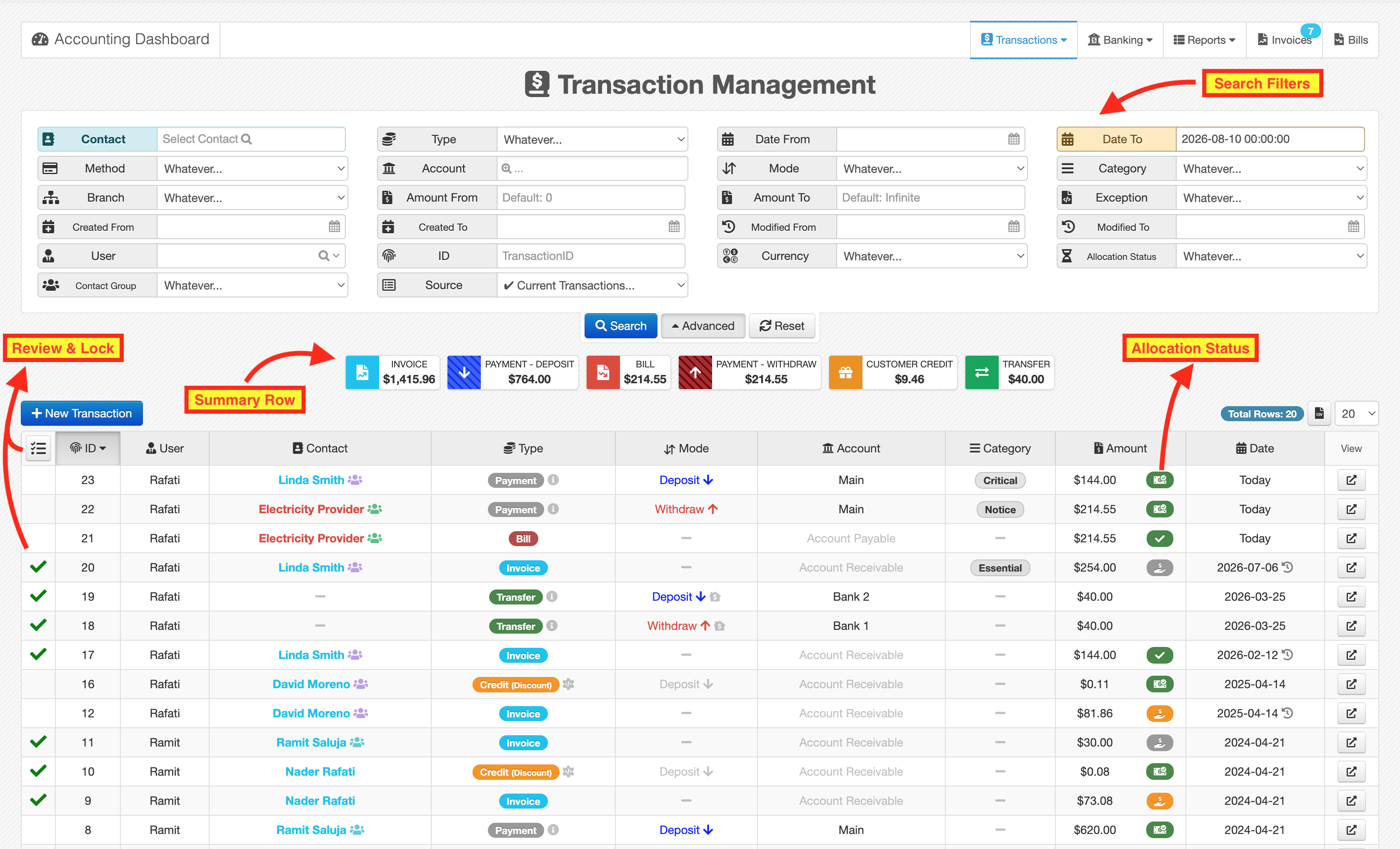
Structure of the Page
The Transactions page follows the standard reporting layout:
- Filter section (search controls)
- Results table
Each filter has a label, and you can combine multiple filters to narrow down results.
The first three rows include the most commonly used filters and are always visible.
Click Advanced to access more detailed filters.
Use Reset to clear all filters.
For best results, apply at least one filter before reviewing data.
Summary Row
After applying filters (at least one active), a summary row appears above the table.
This row shows totals grouped by transaction type:
- Invoice
- Payment - Deposit
- Statement - Deposit
- Bill
- Payment - Withdraw
- Statement - Withdraw
- Vendor Credit
- Customer Credit
- Transfer
Only types that exist in the current result will be shown.
Each item in the summary row is clickable and will apply an additional filter based on that type.
Creating a New Transaction
On the top-left of the table, use New Transaction.
This opens a tree-style menu:
- Customer
- Invoice
- Receive Payment (Deposit)
- Statement / Check
- Credit
- Vendor
- Bill
- Make Payment (Withdraw)
- Statement / Check
- Credit
- Internal Transactions
- General Revenue / Payment
- Account Transfer Money
Choose the appropriate type to create a new transaction.
Table Controls
On the top-right:
-
Total Rows shows number of results
- Hover to see:
- Total Account Deposits
- Total Account Withdraws
- Account Balance (difference)
- Reviewed / Not Reviewed counts
- Hover to see:
-
Export button for CSV / Excel
-
Rows Per Page dropdown (default: 20)
Sorting & Table Behavior
You can sort the table by clicking on any column header.
Click again to toggle ascending / descending order.
Many columns include icons and indicators.
Hover over them to see additional details.
Viewing and Editing Transactions
- at the end of each row → View / Edit
- Clicking the ID column:
- Opens quick view
- For Invoice and Bill, this is view-only (not edit)
Review & Lock Transactions
Transactions can be marked as Reviewed.
When a transaction is Reviewed:
- It becomes locked
- It cannot be edited or deleted unless unmarked
This is useful for accounting control and reconciliation.
How Review Works
-
First column shows:
- ✔ Reviewed
- empty = Not Reviewed
-
Activate selection mode using
-
Then:
- Select individual rows
- Or use bulk actions
Bulk Actions
When at least one filter is applied, additional options appear:
- Mark All as Reviewed
- Unmark All as Reviewed
A confirmation dialog will appear before applying changes.
Next to these buttons:
- expands the summary row
- Shows totals of Reviewed transactions (green indicators)
Review mode is manually activated by default.
If you need it always enabled, contact support to change the default behavior.
Deleted Transactions
In Advanced filters, use:
- Source
Options:
- ✔ Current Transactions (default)
- ❌ Deleted Transactions
When viewing deleted transactions:
- Delete Date is shown
- Hover to see:
- Created By
- Deleted By
Invoice and Bill pages also have their own history and deleted records with more detailed information (such as entries and items).