Login & First Look
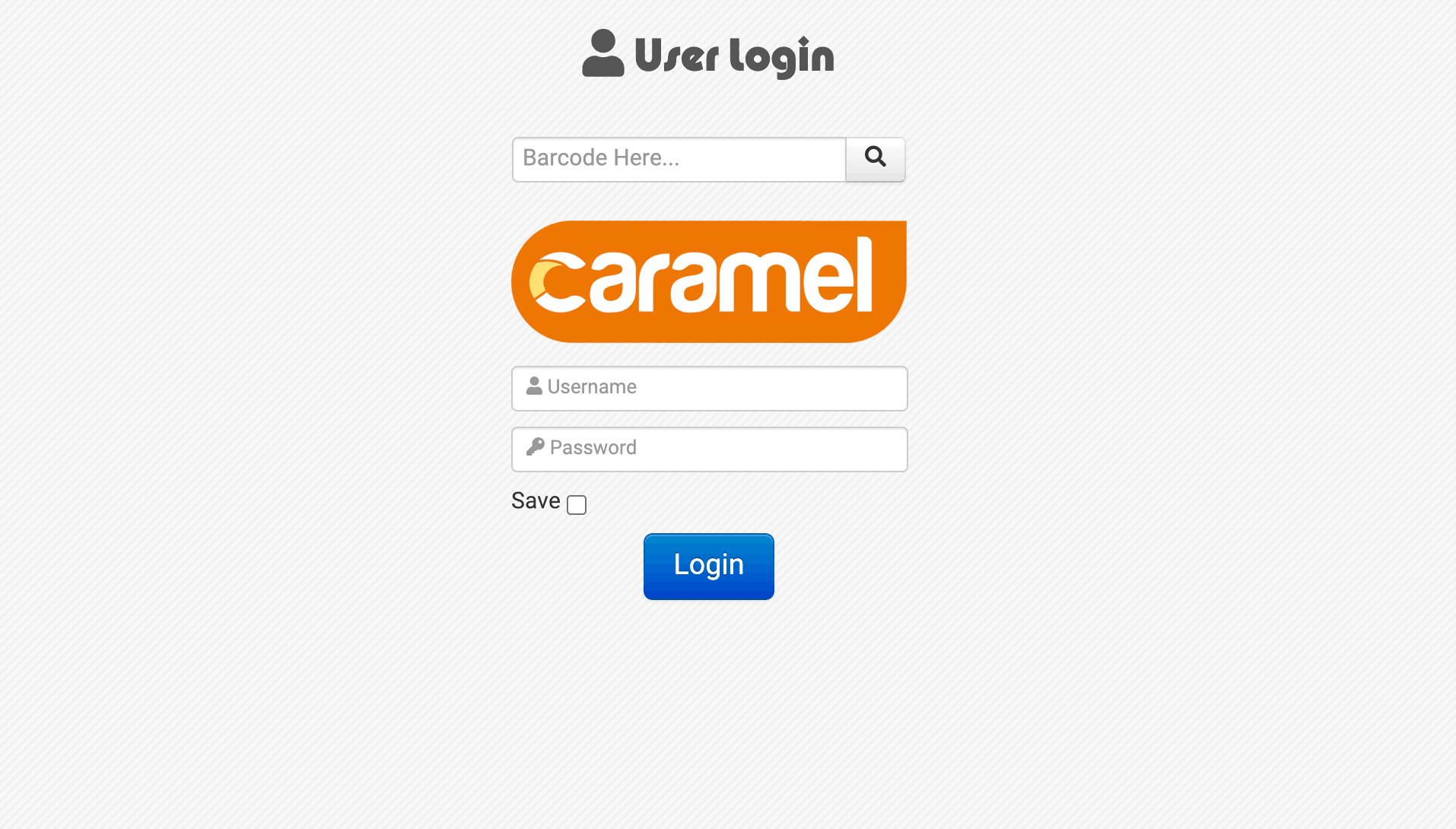
The login page is the first screen you see when accessing the system.
Users can sign in using one of the following methods:
- Manual login by entering a username and password
- Automatic login by scanning a dedicated Barcode or RFID, available when operating within internal networks
This flexibility allows fast access while maintaining security in operational environments.
User Accounts & Editions
In Pro and Enterprise editions, you can create an unlimited number of users directly within the system.
In lower editions, the number of users is limited.
User accounts in these editions are created and managed in coordination with the support team.
Session Timeout
If there is no activity in the system, you will be automatically logged out after up to one hour,
unless you explicitly use the Save option during your session.
Login Page Example
Below is an example of the login screen:
Login Page Tips
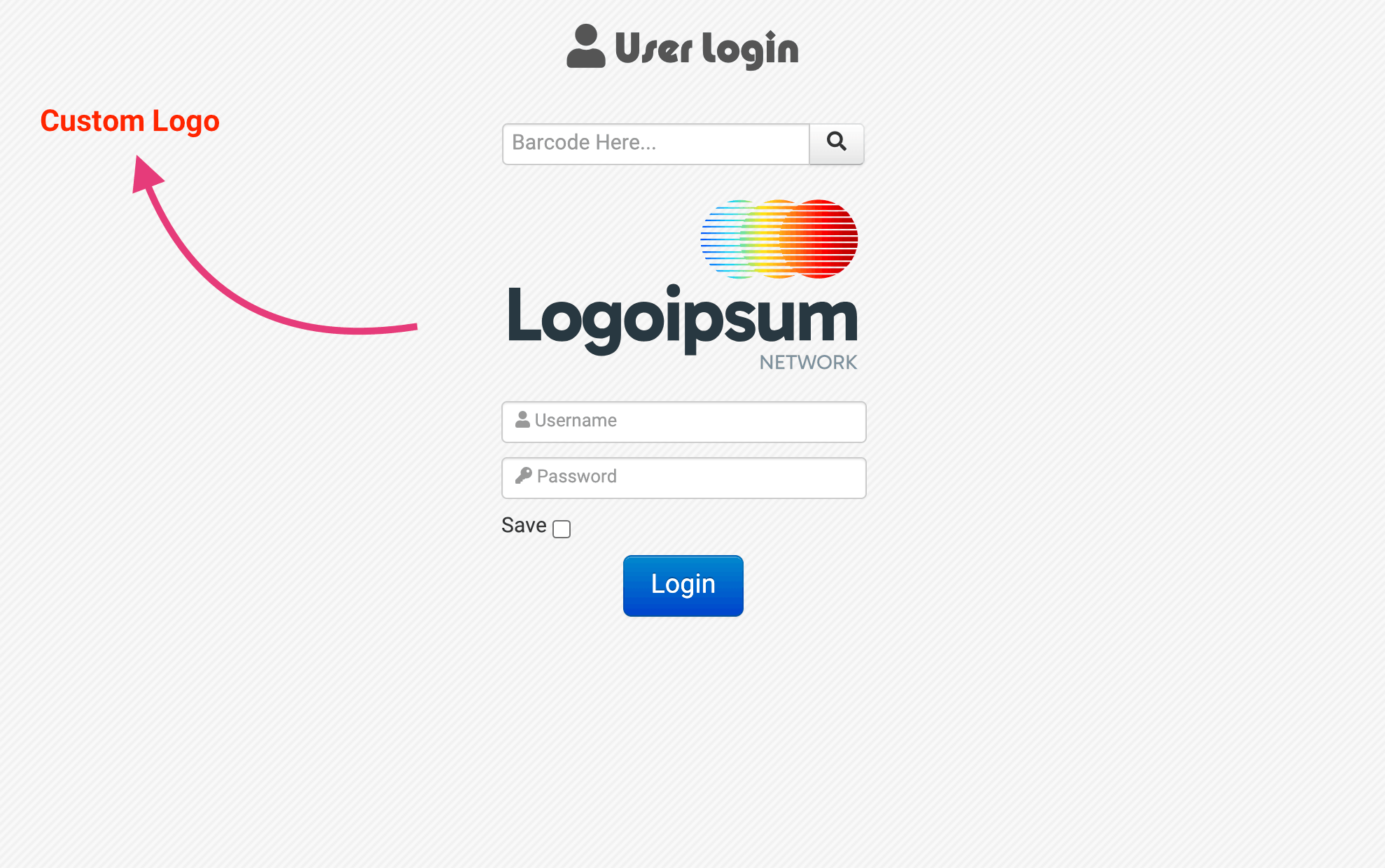
In Pro and Enterprise editions, you can display your own company logo on the login page.
This helps align the system with your organization’s branding and visual identity.
It is recommended not to use the Remember Me / Save option unless it is absolutely necessary. If you forget to log out while this option is enabled, unauthorized users may gain access using your account.